Instrumental switch
Turn on Instrumental and the lyrics box goes away. All you need is a style.

Background music generator
Voices AI is an AI background music generator for iPhone and Android. Switch on Instrumental, type a style like lo-fi, cinematic, corporate, or chill, and get a music track without vocals. Use it under a YouTube video, a podcast, a presentation, or a stream.
Try it free in your browser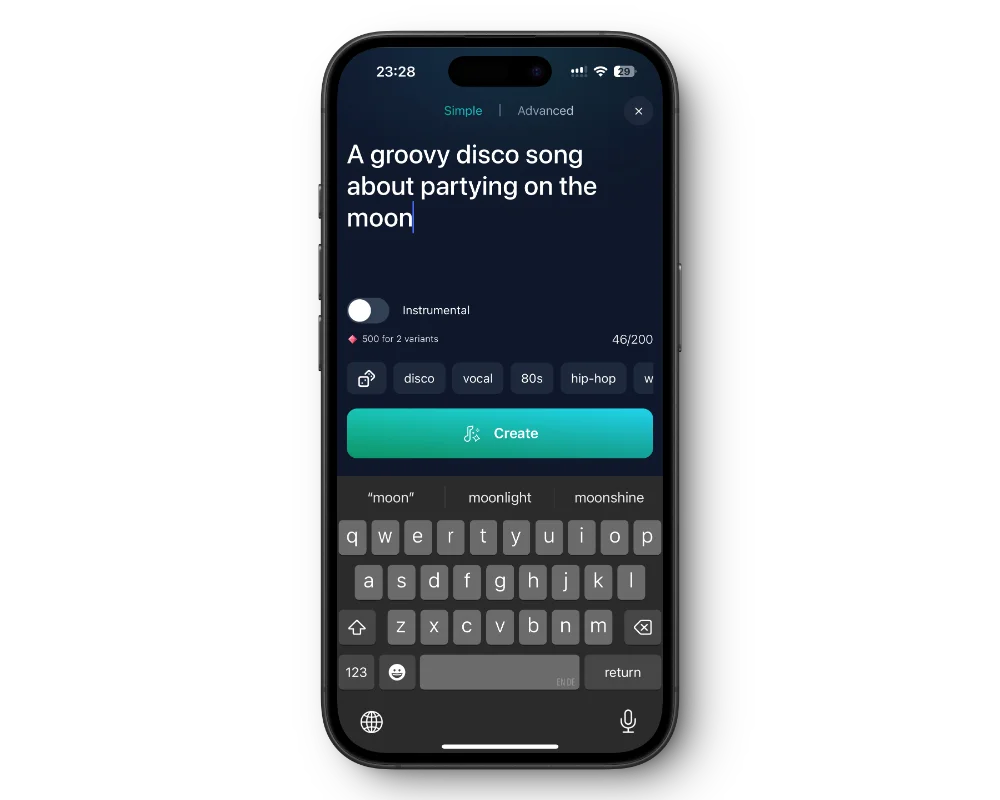
Turn on Instrumental and the lyrics box goes away. All you need is a style.
Lo-fi, cinematic, corporate, chill, ambient piano, synthwave, or acoustic guitar. Add a mood and tempo, like "calm, slow".
Remix > Extend keeps a track going with a new part, and you get the whole track back.
Paid plans include commercial use while your subscription is active.
Get the free app on the App Store or Google Play.
Go to Songs and switch to Custom Mode.
Turn on Instrumental and type the style and mood you need.
Download the track and place it under your video or podcast in your editor.
Background music should support the voice, not compete with it. Describe the track with a genre, a mood, the main instruments, and a tempo, for example "soft lo-fi hip hop, mellow piano, slow" or "light corporate pop, acoustic guitar and claps, upbeat".
Under speech, avoid busy melodies and loud lead instruments. Soft pads, gentle keys, and a steady beat sit behind a voice far more easily than a guitar solo.
For YouTube explainers and vlogs, a light, steady track keeps the energy up without pulling attention from what you say. Podcasts usually need a short intro and outro piece plus a quiet bed for segments. For streams, make a few longer chill tracks for the starting soon and break screens.
If the music ends before your video does, open Remix on the track and choose Extend. Pick where the new part should start, and you get everything up to that point followed by the new part, as one track.
In your editor, set the music to a level where every word stays clear, and dip it a little further while someone is talking. Fade it in at the start and out at the end instead of cutting it hard.
Made a version with vocals by accident? Remix can split a song into instrumental and vocals, so you can keep only the instrumental.
Paid plans include commercial use while your subscription is active. Without an active subscription, generated music is for personal, non-commercial use. Songs are public by default; subscribers can make a track private so it stays out of explore and search.
Voices AI is free to download. Creating music uses the credits or subscription in your account; the app shows current plans.
Paid plans include commercial use while your subscription is active. Without an active subscription, tracks are for personal, non-commercial use only. The terms of service have the details.
Yes. Download the track and add it in your editor. For monetized or other commercial videos you need an active paid subscription, since paid plans include commercial use while your subscription is active.
Turn on Instrumental when you create the track. You can also split an existing song into instrumental and vocals with Remix.
Yes. Open Remix on the track and choose Extend to add a new part. You get the whole track back with the new part included.
Lo-fi, chill, ambient, cinematic, corporate, acoustic, and soft electronic styles sit well under a voice. Type the style and a mood when you create the track.
Generate Voiceovers & songs with AI
Instrumental background music in any style, for videos, podcasts, and streams.


